Inspector Guide
Besides querying, OCPQ lets you look through the loaded OCEL directly: its types and attributes, single events and objects, how they relate, and the bindings behind a query result. Most of this happens in the Inspector, the panel on the right side of the app.
OCEL Info
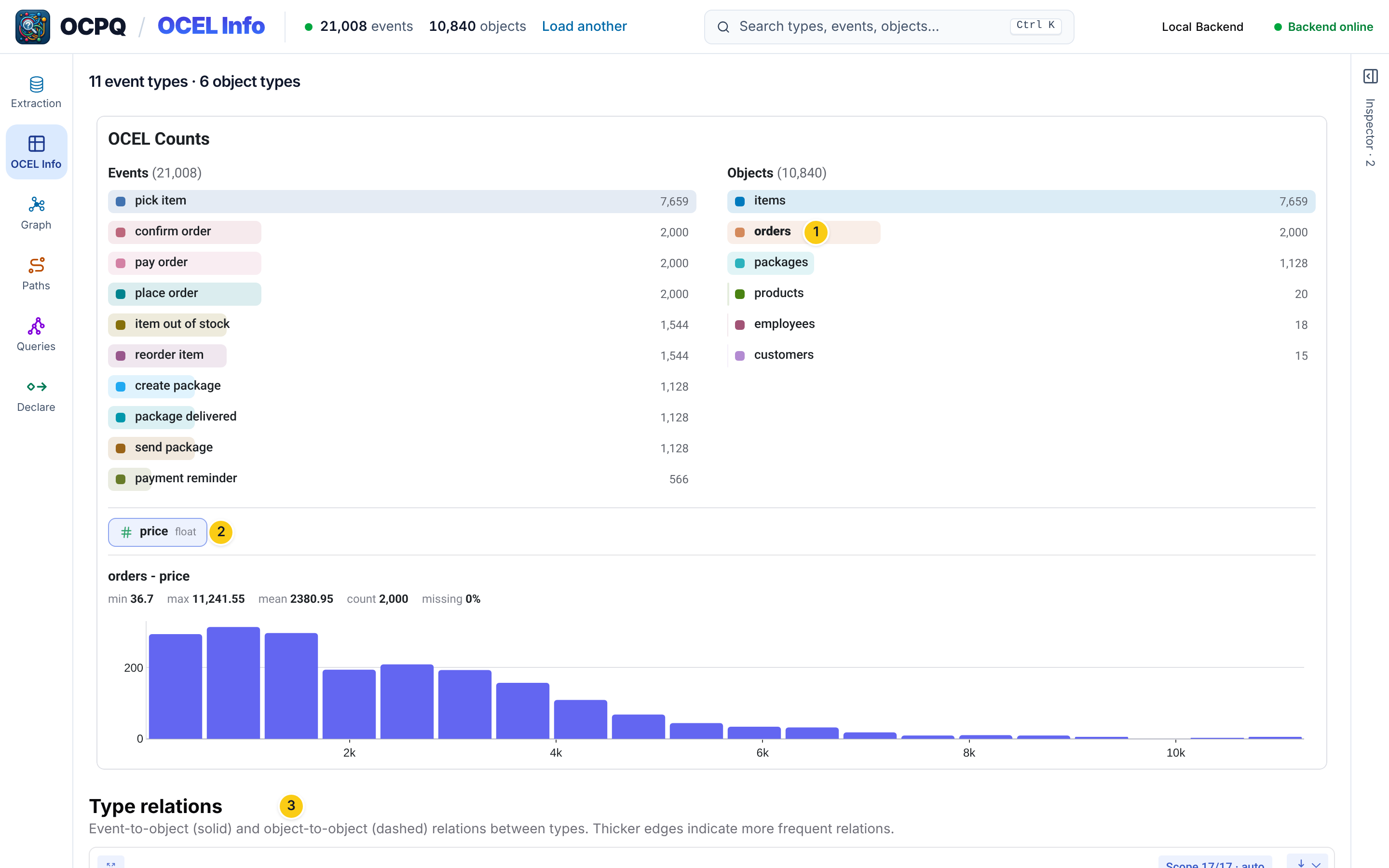
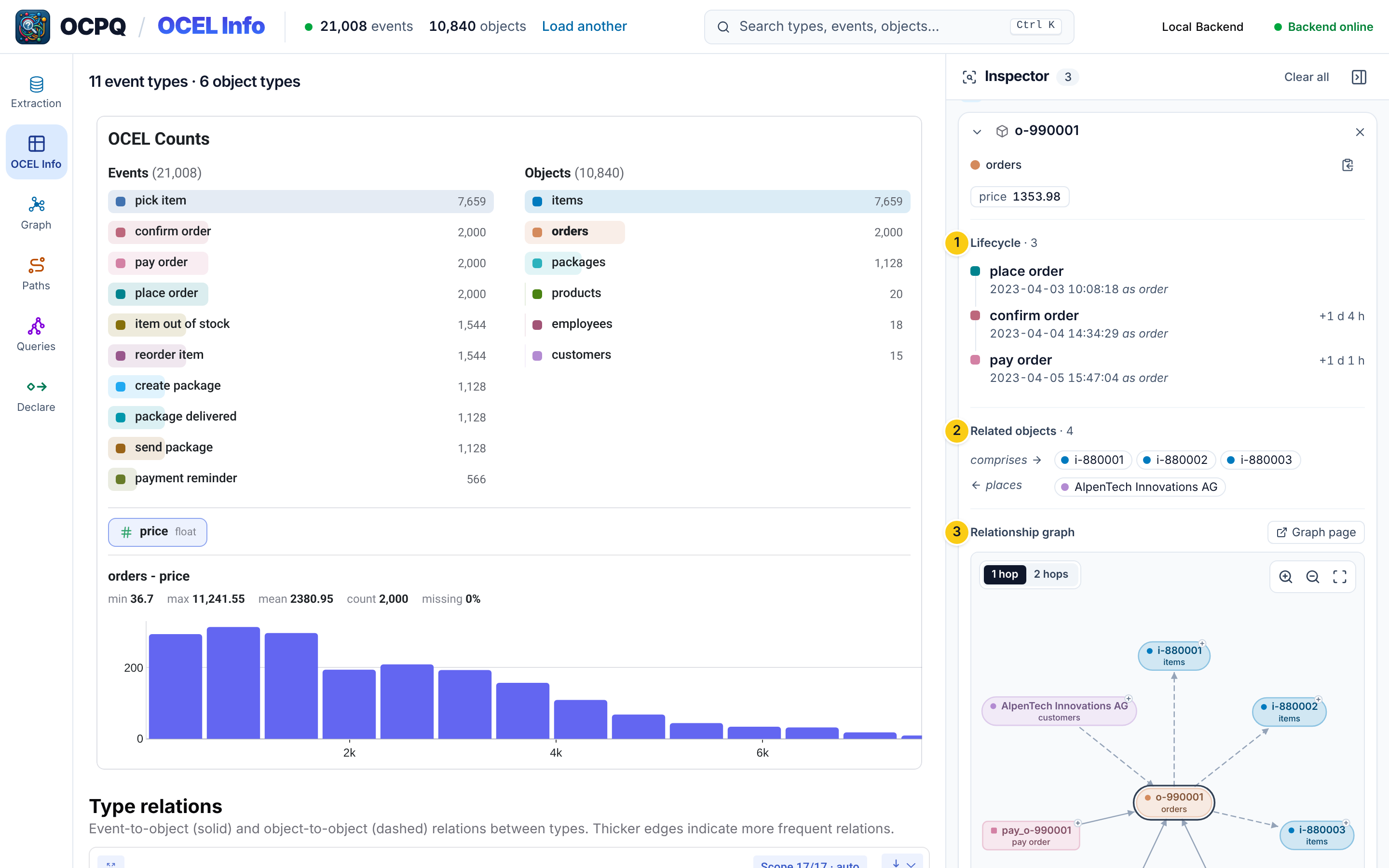
After an OCEL is loaded, the OCEL Info page lists all event and object types with their number of events or objects.
Clicking a type 1 shows its attributes.
Clicking an attribute 2 shows its value distribution, here the prices of orders.
Further down, the type relations graph 3 shows which event types relate to which object types (E2O), and which object types relate to each other (O2O). Thicker edges stand for more relations. The graph can be exported as an image.
Search
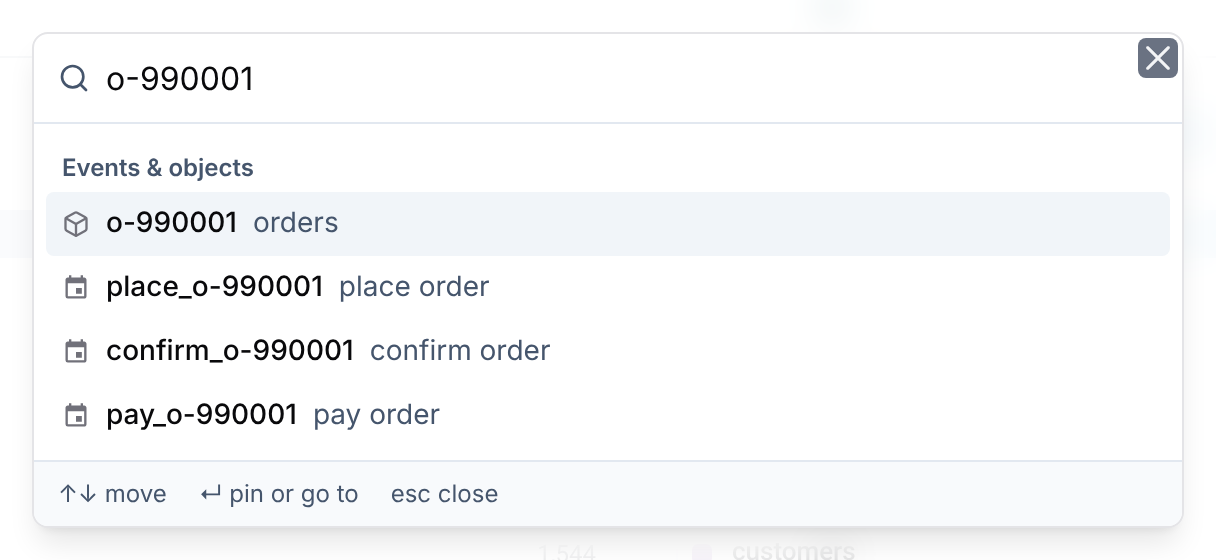
The search in the top bar (or Ctrl+K) finds types, events, and objects by name or ID.
Enter opens the selected result in the Inspector.
Event and object details
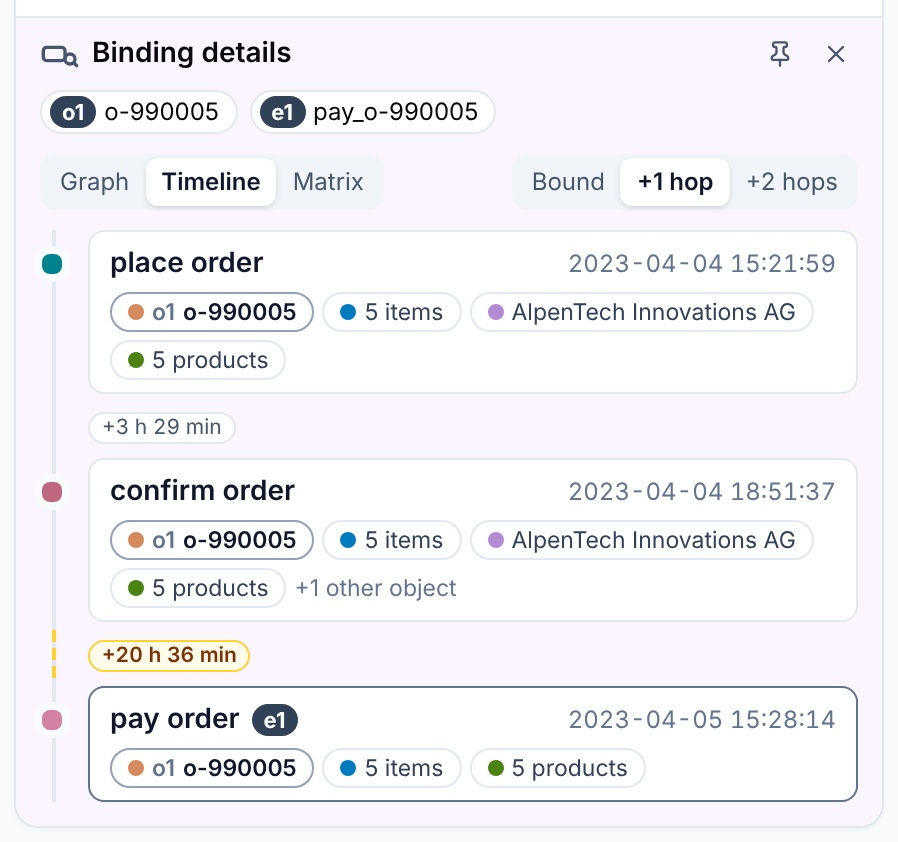
The Inspector shows an object with its type and attribute values, its lifecycle 1 (all events it is involved in, with the time between them), its related objects 2, and a small relationship graph 3. Events are shown the same way, with the objects they involve.
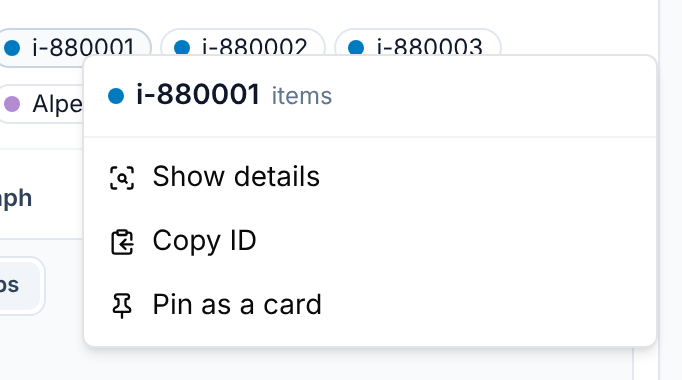
Right-clicking an event or object anywhere in the app opens a menu. It shows the element’s details, copies its ID, or pins it as a card that stays in the Inspector. While a query is open, it can also add the element’s type to the query.
Relationship graph
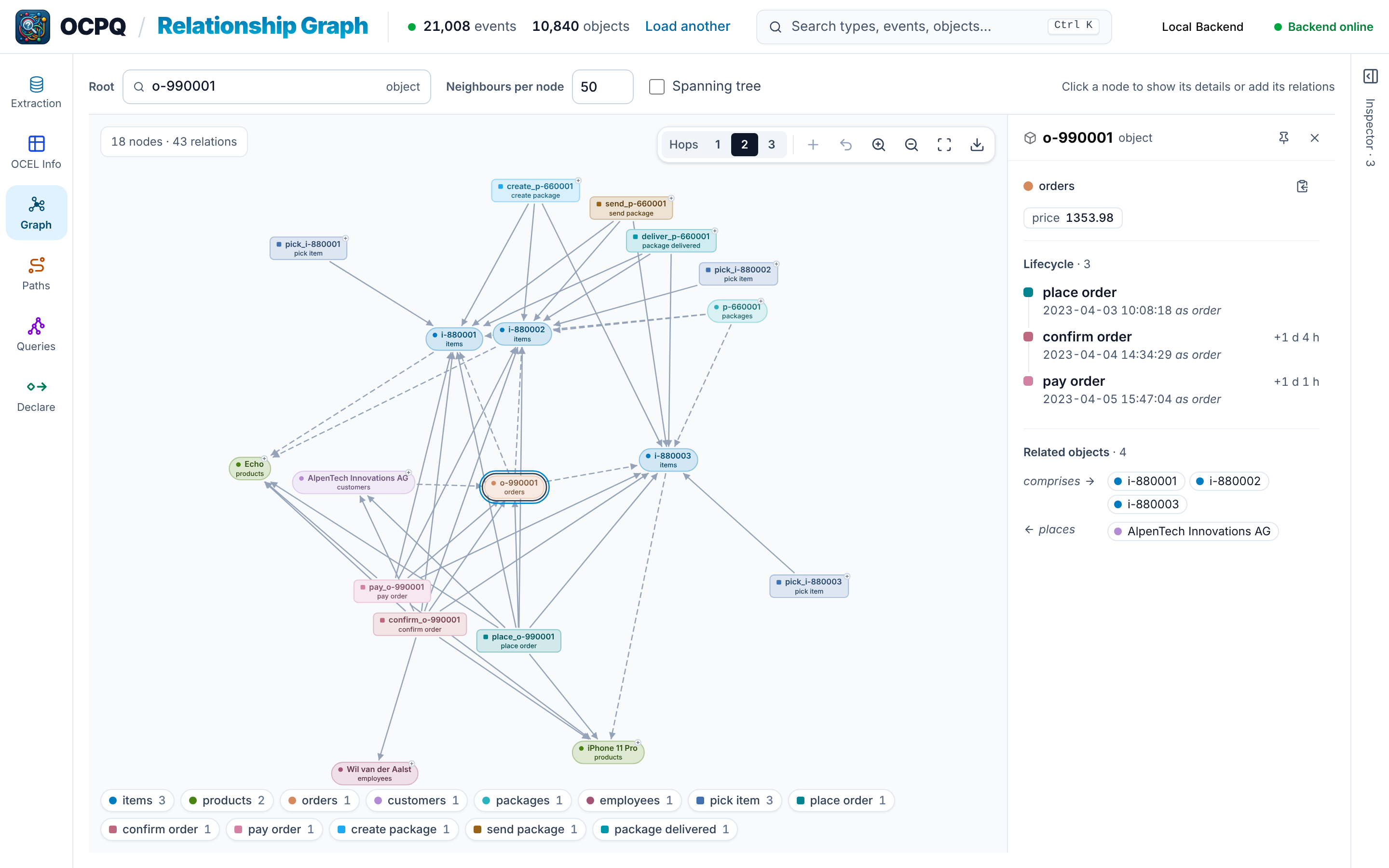
Graph in the sidebar (or Graph page in an element’s details) opens the full relationship graph around one event or object.
It can show up to 3 hops of relations, limit the number of neighbors per node, or reduce the graph to a spanning tree.
Clicking a node shows its details next to the graph, and the + on a node adds its relations to the graph.
Bindings of a query
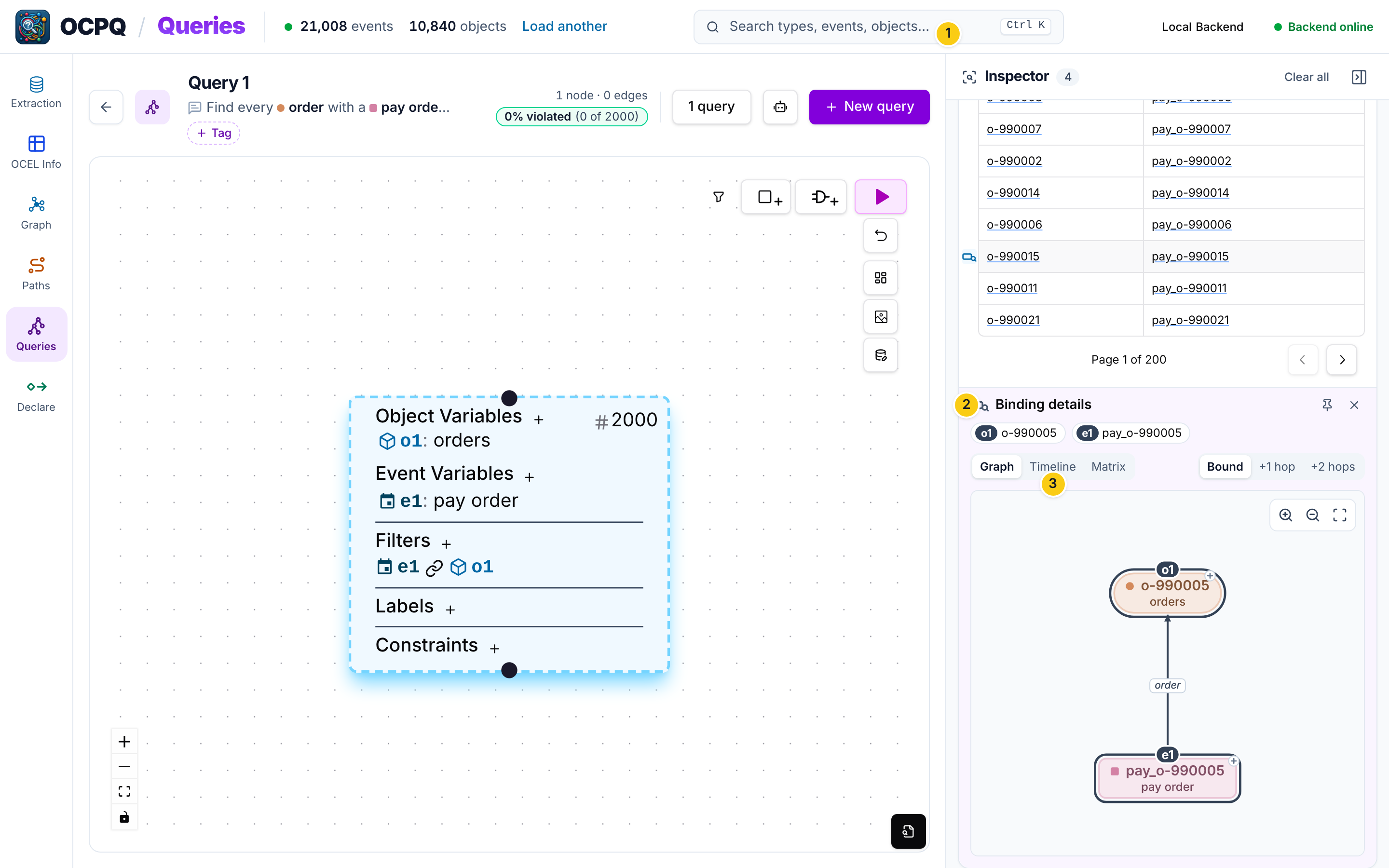
After evaluating a query (see the Query Guide), clicking the number of bindings of a box lists them in the Inspector. Hovering a row shows a button 1 that opens the details of that binding 2. The binding can be viewed 3 as a graph, as a timeline of its events, or as a matrix, optionally extended by 1 or 2 hops of related events and objects.