Situation Tables Guide
Situation tables contain one row per situation (e.g., per order) and one column per feature of that situation. Such tables are commonly used as input for machine learning or statistical analyses of process data. In OCPQ, the bindings of a query box correspond to the situations, and its labels correspond to the features.
Defining Situations
First, follow the Query Guide to create a box whose bindings are the situations you are interested in.
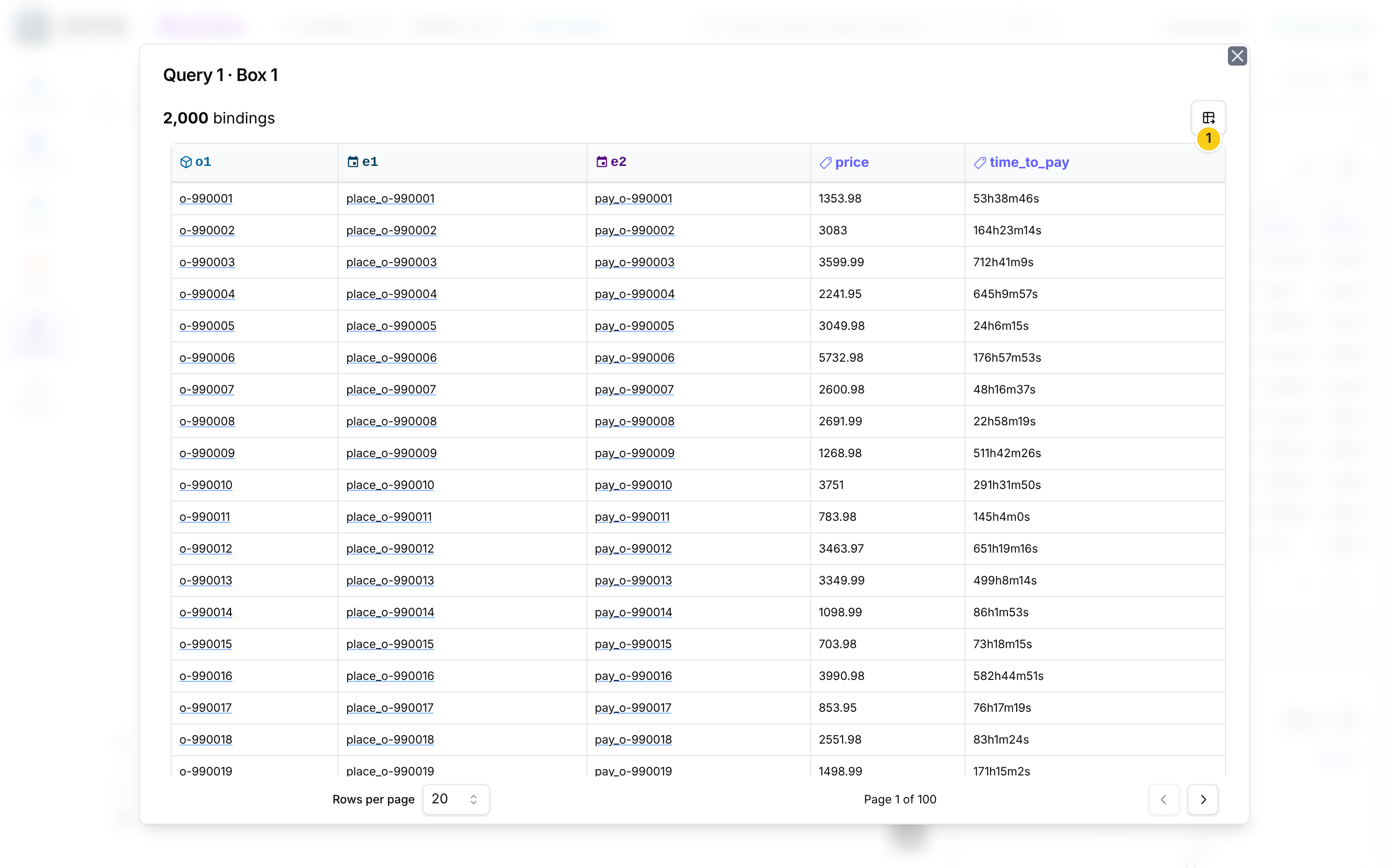
In our example, each binding consists of an order o1 together with its place order event e1 and its pay order event e2.
Adding Features
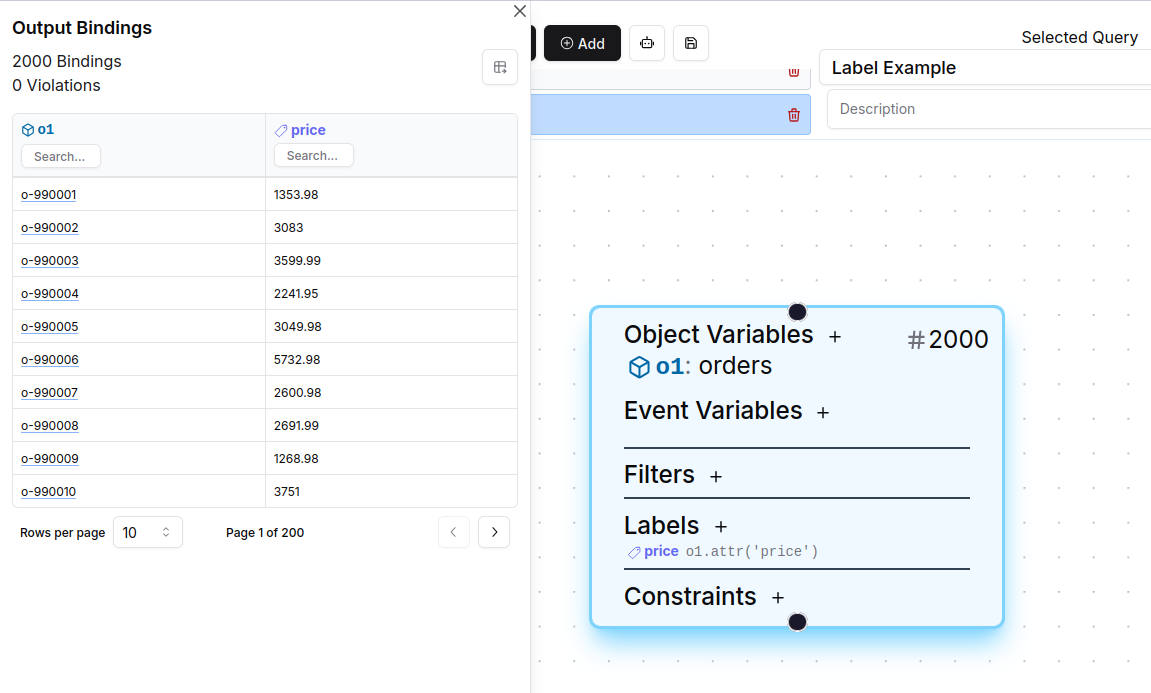
Next, add a label for each feature, as described in the CEL Labels Guide. For our example, we add two labels:
price, the price of the order (o1.attr('price')), andtime_to_pay, the time between placing and paying the order (string(e2.time() - e1.time())).
Exporting the Table
After evaluating the query, click on the number of bindings of the box. The binding table in the Inspector now contains a column for each label, and the expand button above the table shows it in a larger window. Using the export button 1, the table can be saved as a CSV or XLSX file.
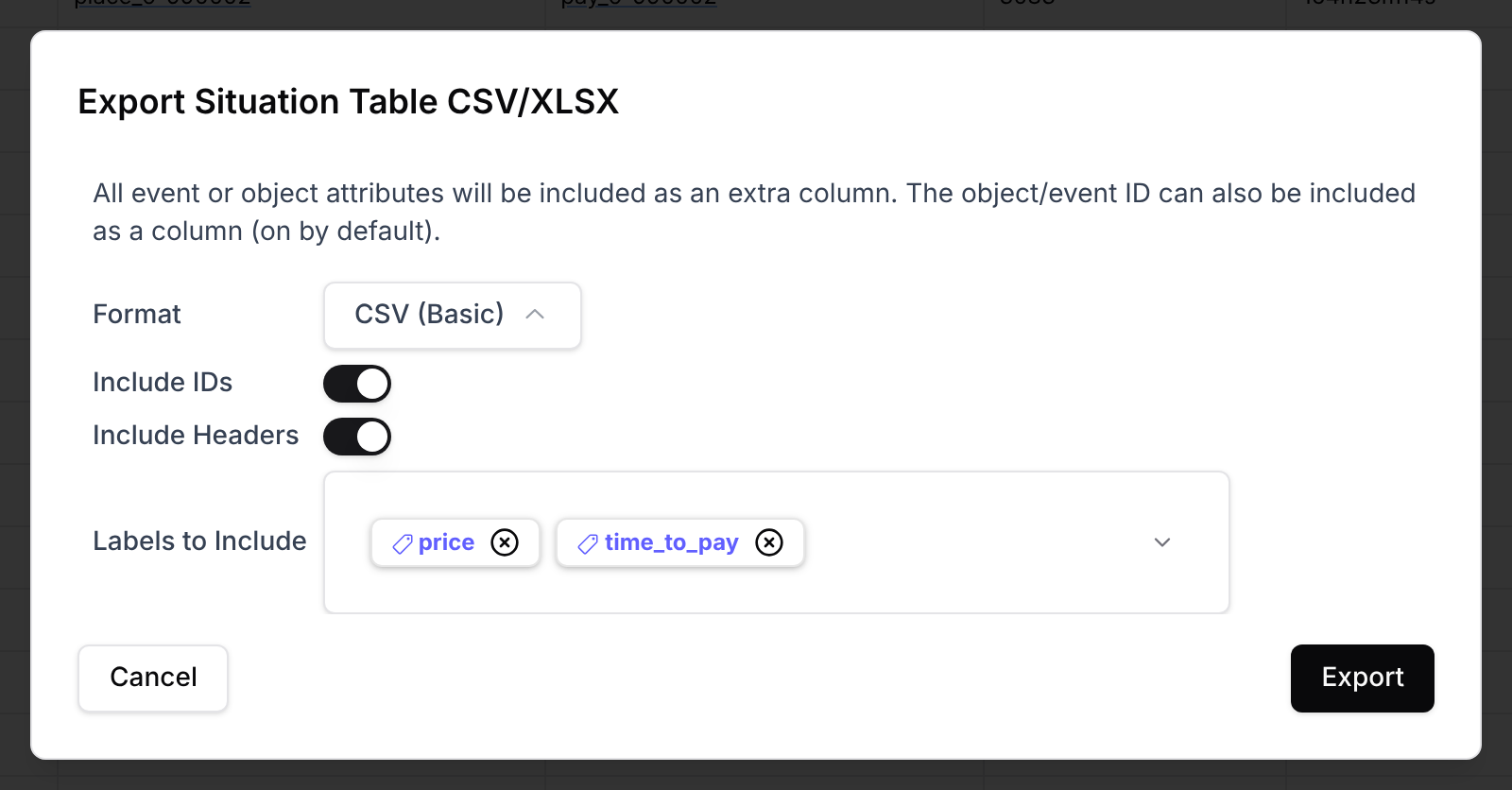
In the export dialog, you can choose
- the format (CSV or XLSX),
- whether to include the event and object IDs as well as a header row,
- which labels to include, and
- for boxes with constraints, whether to include the violation status of each binding.
Additionally, all attributes of the bound events and objects are added as extra columns.